

Turn on the app lock
1
Select the App lock switch
Open Settings > Security. Gerfaut opens
Turn on the app lock.2
Pick PIN or Password
Select
PIN (four to 12 digits) or Password (at least eight characters). Only a PIN opens the calculator disguise on Android.3
Enter the secret twice
Enter
New PIN or New password, then Confirm, and select Turn on. Gerfaut asks for the secret each time it opens.- Android
- Desktop
Once the lock is on, Security adds Change PIN, Lock now and the calculator disguise.
Lock and unlock
- Android
- Desktop
Gerfaut asks for the secret each time you come back to it. Returning within ten minutes from a file picker, a save dialog or a share sheet that Gerfaut opened needs no secret. Select Lock now in Settings > Security to lock it by hand. While a lock is set, Android keeps Gerfaut out of screenshots and shows a blank card in the recent apps, or the calculator under the disguise.A notification still names the wallet and gives the amount while a lock is set. To hide both, turn off
Show wallet and amount.Locked screen, enter the secret and select Unlock. After three wrong attempts, Gerfaut makes you wait five seconds, then doubles the wait at each failure, up to five minutes.
Change or turn off the lock
Select Change PIN or Change password to replace the secret. Select theApp lock switch again to turn the lock off. Both ask for the current secret.
Unlock with biometrics on Android
1
Select the Unlock with biometrics switch
The switch shows when a fingerprint or a face is set up on the phone.
2
Enter your PIN or password, then confirm the system prompt
From then on, the lock screen opens the system prompt on its own. Select Use fingerprint or face to bring it back. Gerfaut never sees the biometric itself.
Disguise the app as a calculator on Android
1
Select Disguise the app
It needs an app lock of the
PIN kind. The sheet lists what changes, starting with the launcher, which shows Calculator instead of Gerfaut.2
Select Turn on the disguise
From Android 13, the recent apps keep no picture of Gerfaut while it is disguised. On an older Android, clear your recent apps once, because Android may keep an older Gerfaut thumbnail.
3
Open Gerfaut from the calculator
Type your PIN on the calculator and press
=. A wrong PIN gives a number like any calculator, with no hint. After three wrong PINs, the right one also gives a number until the wait ends.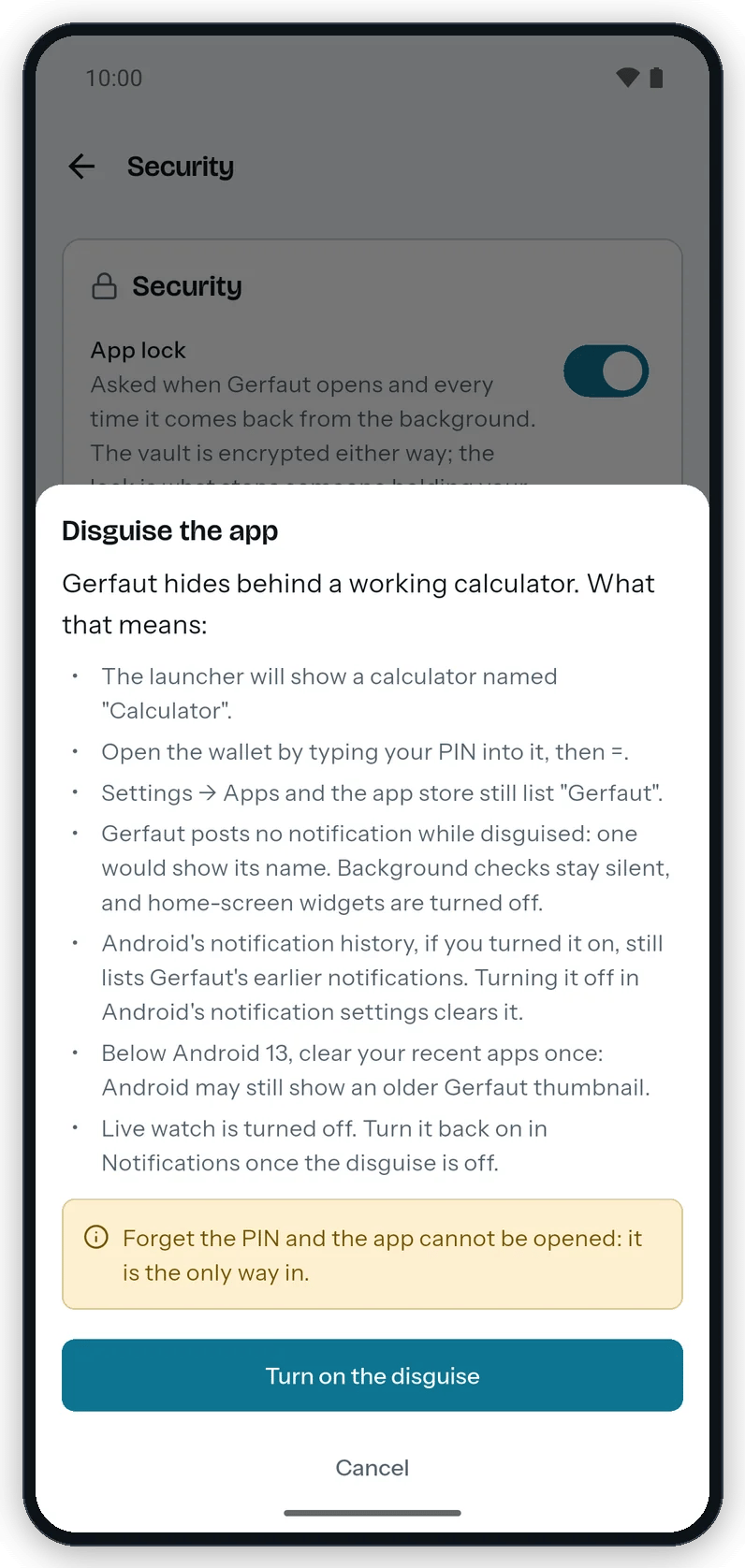
The sheet lists everything the disguise changes before you turn it on.
- Notifications: Gerfaut posts none, and clears the ones already in the notification shade.
- Live: If Live is on, Gerfaut turns it off and sets
Check for transactionstoEvery 15 min. Background checks post nothing either. - Widgets: Gerfaut removes its widgets from your home screen.
- Notification history: If you turned on Android’s notification history, it still lists Gerfaut’s earlier notifications under its name. Turn the history off in Android’s notification settings to clear it.
New transactions shows off and every notification setting stays greyed out while the disguise is on. The line under the switch says why. Once you turn the disguise off, New transactions is back as you left it.
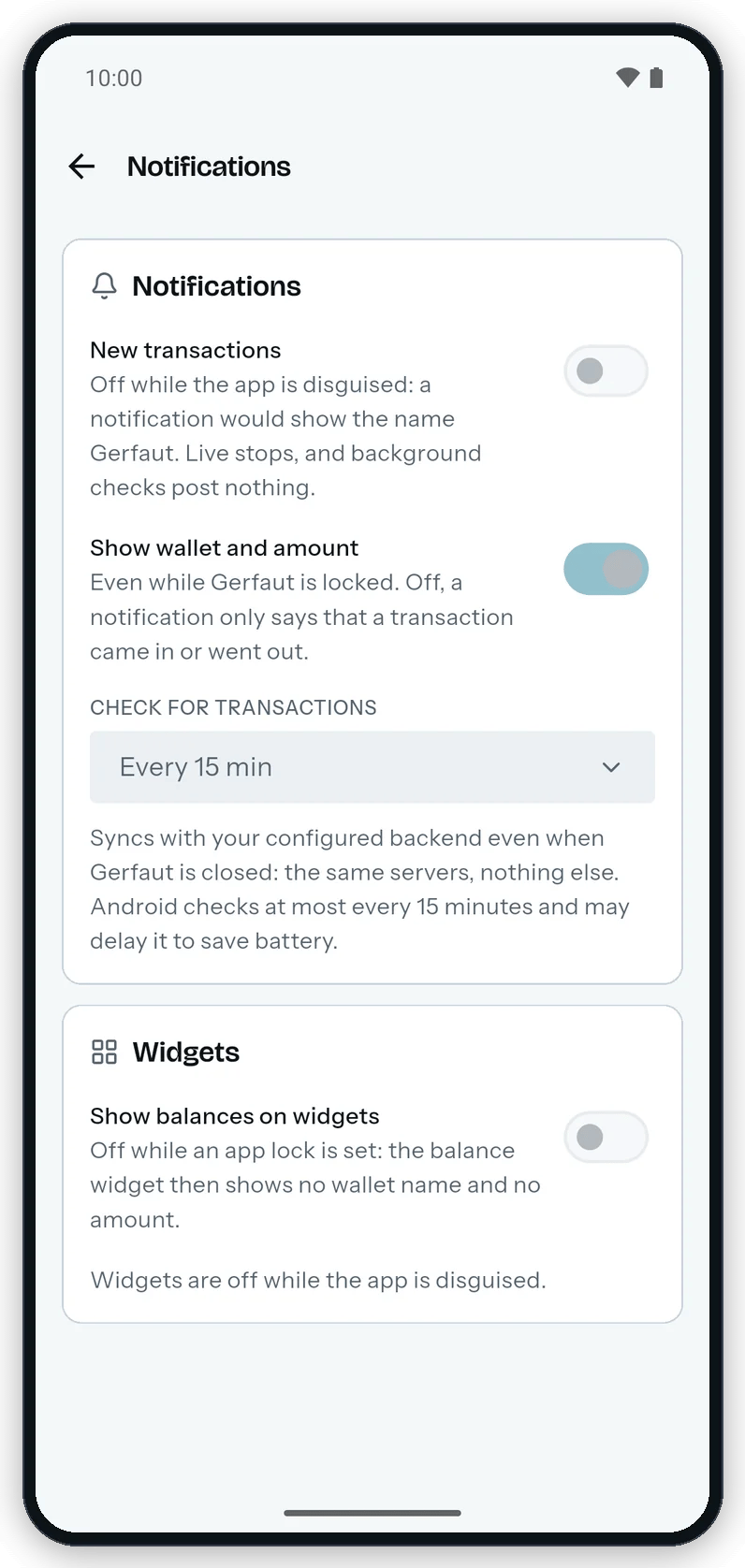
Under the disguise, the notification settings stay greyed out and say why.
Turn off the disguise
Select theDisguise the app switch again, or turn the app lock off. Gerfaut does not restore Live or the widgets on its own:
- Live: If you used Live, select
Liveagain underCheck for transactionsin Settings > Notifications. - Widgets: The disguise removed them from your home screen. Add each one again.
Start over after a forgotten PIN or password
Nobody can reset a forgotten PIN or password, since Gerfaut keeps no copy of it. Start Gerfaut again on an empty vault, then restore your last backup.Only the wallets in your backup come back. Add any other wallet again from its descriptor, extended public key or address.
- Android
- Desktop
1
Uninstall Gerfaut
In the Android settings, open the list of apps, select Gerfaut and uninstall it.
2
Install Gerfaut again
Follow Install on Android.
3
Restore the backup
Follow Restore a backup.