

- Android
- Desktop
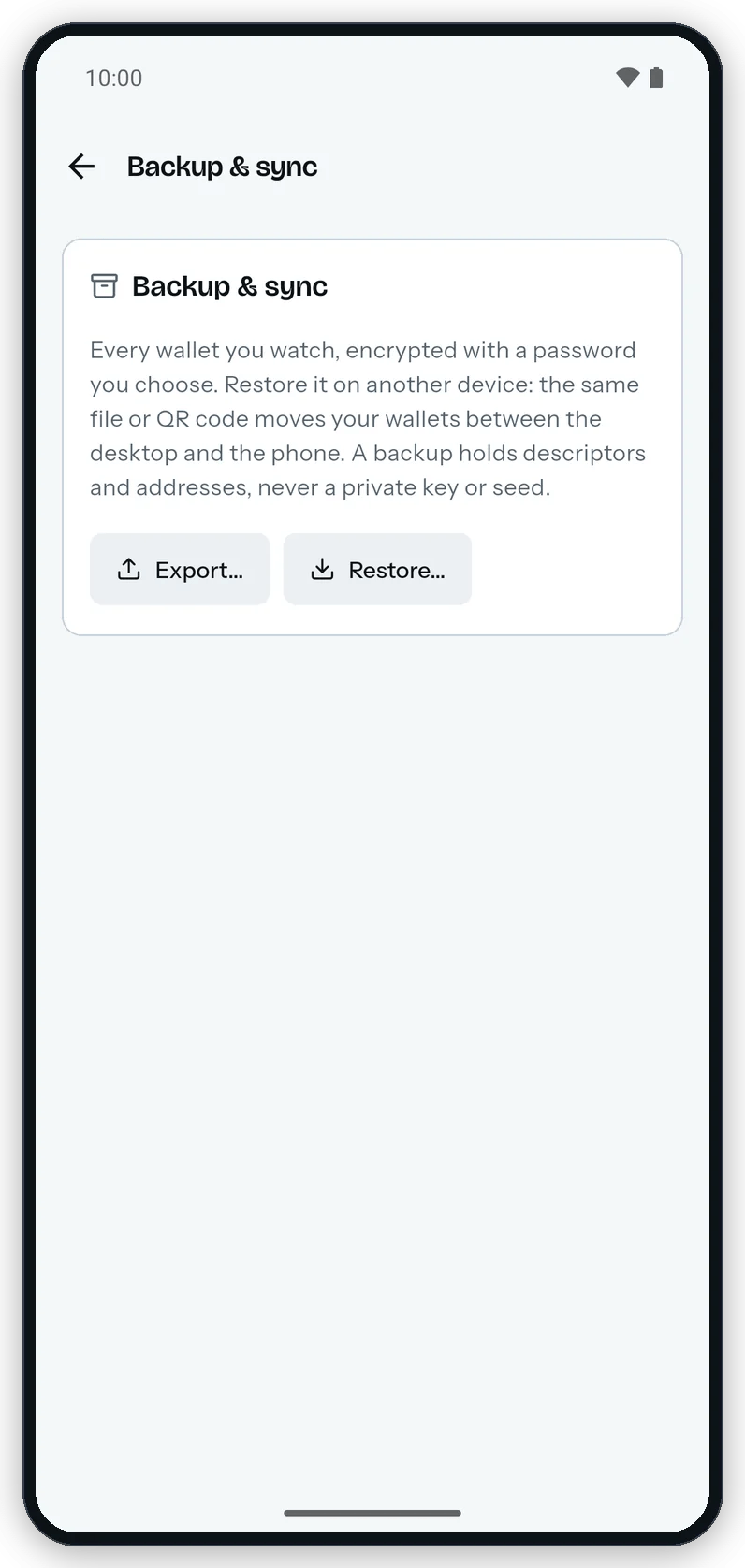
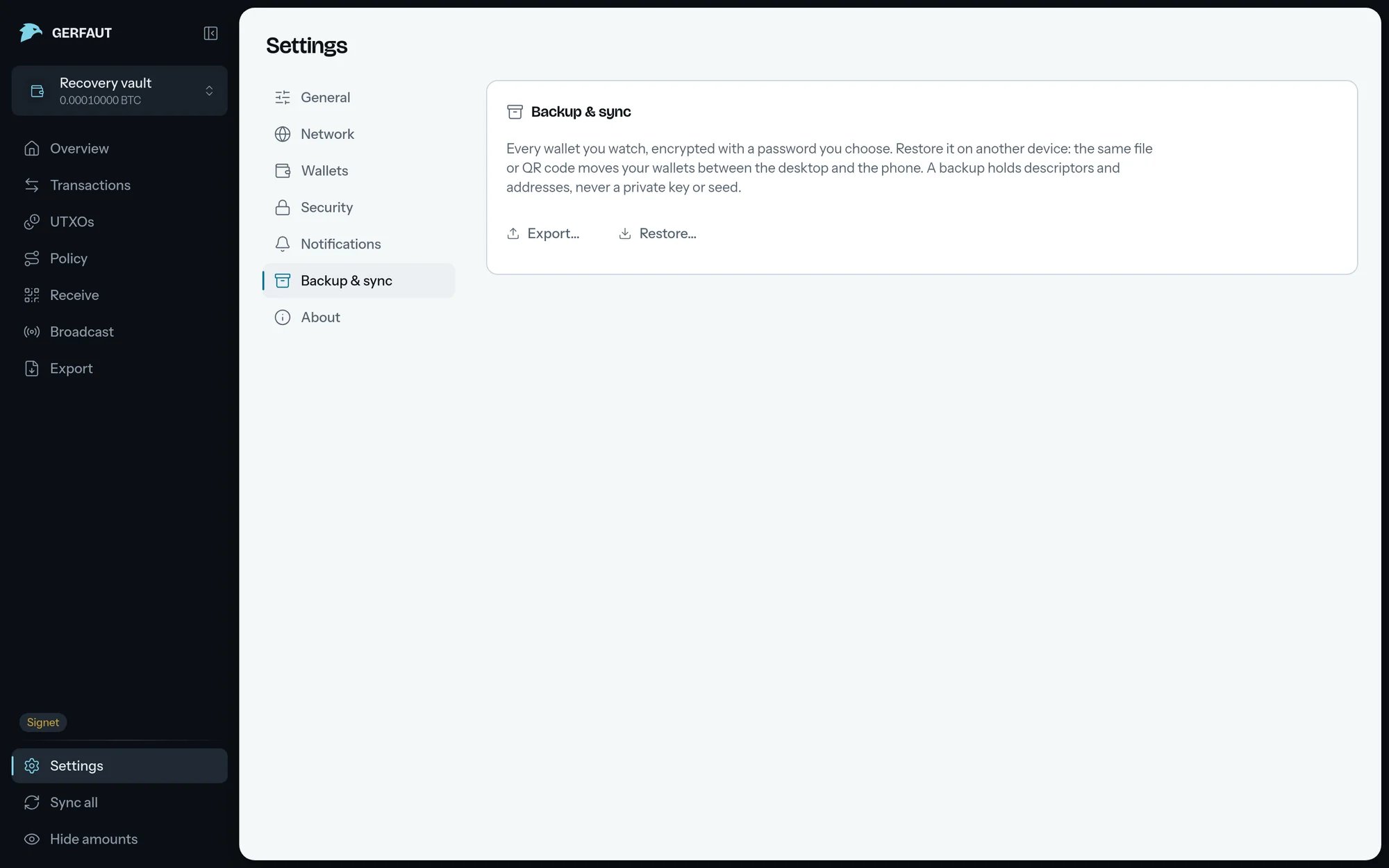
A backup carries descriptors and addresses under a password, never a private key or a seed.
Export a backup
1
Select Export…
Gerfaut opens
Export a backup.2
Check what goes in
When all your wallets are on the selected network,
Wallets only counts them, such as All wallets (1). Otherwise, keep All wallets (5) or select the option of the selected network alone, such as Signet only (3). Select the Include node settings switch to add your backend, the certificates you accepted and the gap limit.3
Pick a password
Enter it in
Password and Confirm password, then select Create backup.4
Save the file or show the QR code
Select Save file… to write a
.gerfaut file, or Save file and Share on Android. Share hands the file to the app you pick in the share sheet, and to no other app. Select Show QR code to show the backup as an animated QR code.- Android
- Desktop
The same backup leaves as a file or as an animated QR code, which the other device reads from any frame.
Restore a backup
1
Select Restore…
Gerfaut opens
Restore a backup.2
Open the backup
Select Open a file… (Open a file on Android) and pick the
.gerfaut file. Or select Scan a QR code and keep the camera on the code until the counter reaches its total. One loop of the code is enough.3
Enter the password
Select Open backup. When the backup does not open, Gerfaut says why:
Wrong password, or the file is damaged.: Enter the password again. A password shorter than eight characters always reads this, since no backup is sealed under one.This is not a Gerfaut backup, or it is damaged.: Check that you opened a.gerfautfile or a Gerfaut backup QR code. The password is not in question.This backup was made with a newer version of Gerfaut. Update Gerfaut to open it.: Update Gerfaut on Android or desktop, then open the backup again.
4
Pick what to restore
Gerfaut ticks every wallet this device does not watch yet, and marks the others
Already watched. If the backup holds node settings, select the Apply node settings switch to take its backends and gap limit, and add the certificates it accepted. A certificate you already accepted on this device stays as it is.5
Select the Restore button
It counts the wallets, such as Restore 2 wallets. Gerfaut adds the wallets and syncs them.
Restore a backup with a wallet Gerfaut cannot watch
Restore a backup with a wallet Gerfaut cannot watch
A backup can hold a wallet Gerfaut refuses, such as one without a name or with a descriptor it cannot read. That wallet stays on the list, unticked, with
Cannot be restored and the reason under its name.Gerfaut restores the others. The confirmation then ends with 1 left out: Cold storage, or with a count when several are left out.On Android, Gerfaut keeps its data out of the system backup and out of a transfer to a new phone. Keep a Gerfaut backup for a new phone.