

Turn on notifications
- Android
- Desktop
Live: A connection kept open, which brings a notification within seconds.Every 15 min,Every hourorEvery 6 hours: Android checks in the background to save battery, sometimes later than asked.Off: Gerfaut checks only while it is open.
Select the New transactions switch
Select Live under Check for transactions
Live watch sheet says what Live costs and what your server learns. Select Turn on Live.Let Gerfaut run in the background
Follow the steps for your phone
Read the status line
Check for transactions reads Connected · Electrum or Connected · mempool, followed by the server. Another Esplora backend reads Polling every minute. Android shows a permanent notification, Watching for transactions.The Live watch sheet says what Live costs and what your server learns. The status line then names the server.
Notifications are off for Gerfaut in the system settings. shows under New transactions, select Open system settings and allow notifications. Live waits meanwhile, and starts again when you come back to Gerfaut.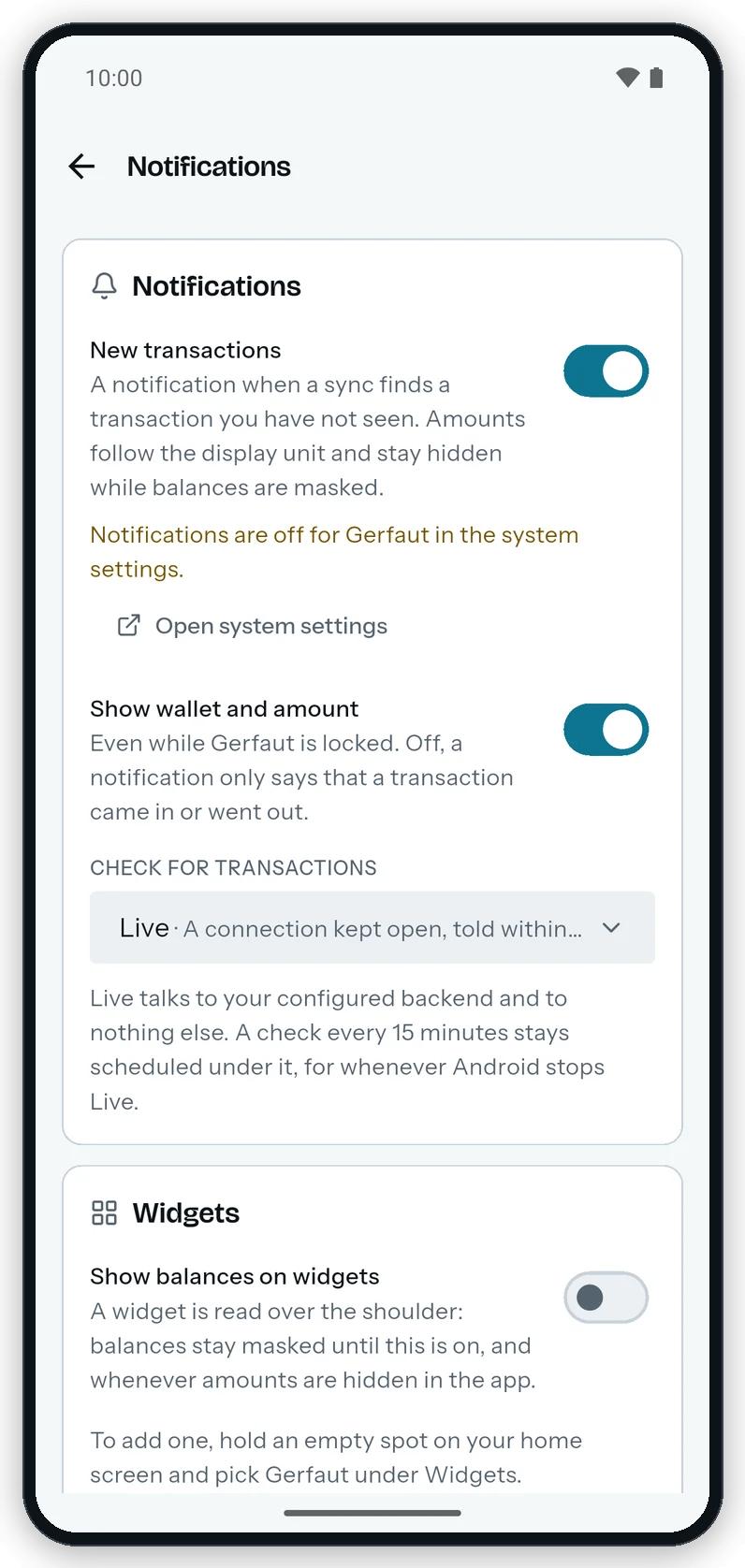
Gerfaut says so in amber when Android blocks its notifications, with a button to the system settings.
Off until you add a wallet. Live starts with the first wallet you add.
Check when notifications arrive
- Android
- Desktop
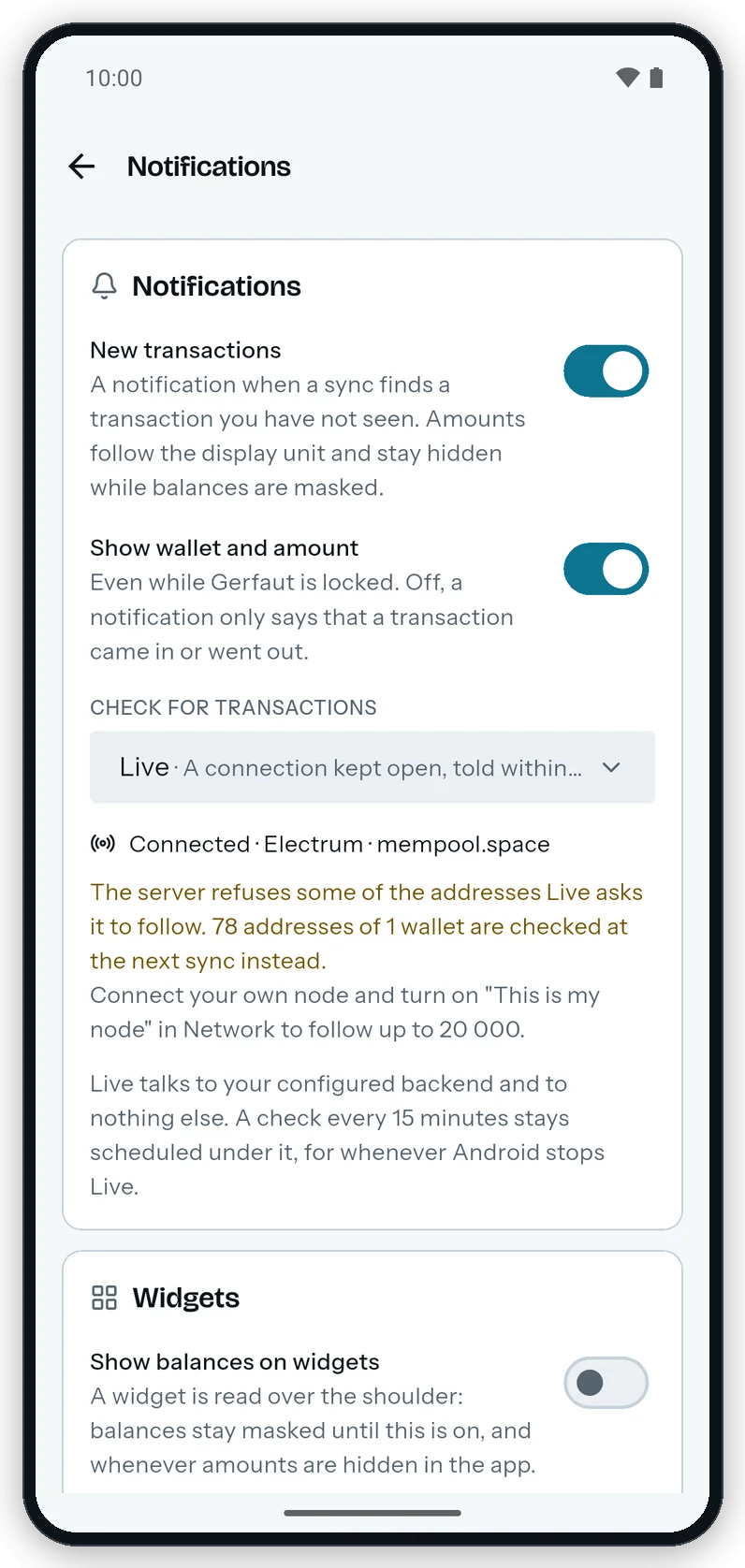
Under Live, a check every 15 minutes stays scheduled for whenever Android stops Live.
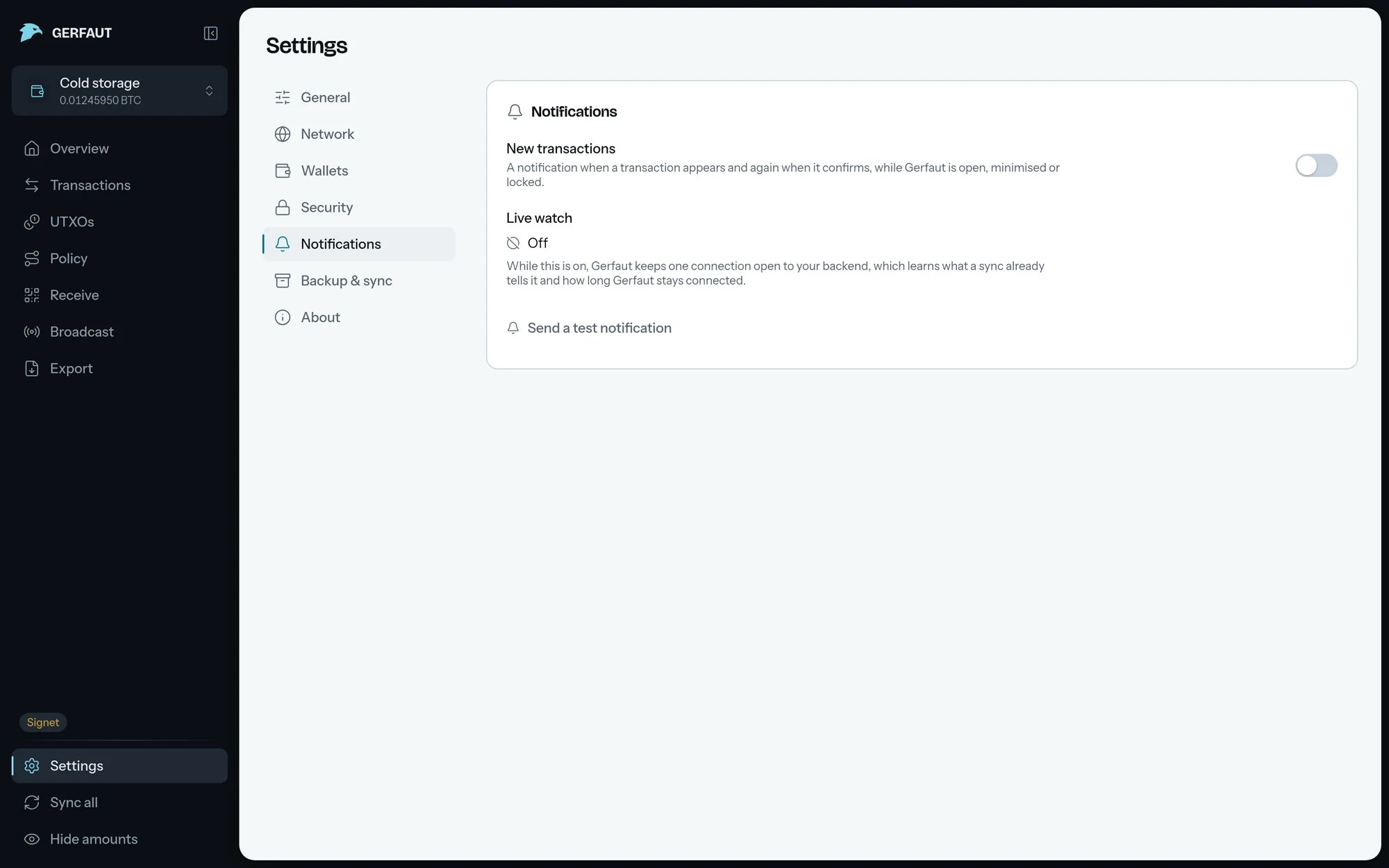
Make Live follow every address
Live follows up to 200 addresses per wallet and 2,000 in all, because public servers limit how many addresses one app may follow. On your own node, theThis is my node switch raises the limit to 20,000. A payment to an address Live does not follow shows at the next sync: when Gerfaut opens, when you sync by hand, or at the complete sync Live runs once a day.
In each wallet, Live takes the addresses most likely to move first:
- Coins: The addresses that hold coins, where a spend shows.
- Receive addresses: The unused ones Gerfaut showed last, as many as the gap limit, then as many again past the last one shown.
- Change addresses: The same, on the change side.
- The rest: Older addresses, newest first.
- Pinned wallets: The wallets you pin come before all the others. Live finishes their rounds before it starts on any other wallet.
- Wallets that hold coins: In each round, they go before the empty wallets.
Use Live with an Esplora backend
Use Live with an Esplora backend
- A mempool instance: A public instance, such as mempool.space, pushes changes for ten addresses per connection on mainnet, and for several hundred on signet and testnet4. Gerfaut reads three of the others each minute. With N addresses taking turns, it reads each one about every N/3 minutes.
- Another Esplora backend: It pushes nothing. Each minute, Gerfaut reads the two addresses Live takes first, and one of the others. With N addresses taking turns, it reads each one about every N minutes.
- Your own node: Gerfaut reads 30 addresses a minute instead of three. On a mempool instance, it reads each one about every N/30 minutes. On another Esplora backend, it reads the first two every minute and each of the others about every N/28 minutes.
- A server that limits requests: Each time it does, Gerfaut waits twice as long between two reads, up to ten minutes. It goes back to once a minute half an hour after the last limit.
Use Live with a server that refuses addresses
Use Live with a server that refuses addresses
- After a limit on the number of addresses: Gerfaut asks again a day later, or an hour later when the server took none.
- After the server refuses one address: A server can turn down a single address, such as one with a history too long for it. Unlike a limit on the number of addresses, this refusal still holds a day later. Gerfaut asks for that address again once Live starts over.
- After ElectrumX cuts Live off: ElectrumX does so when the list costs it too much. Gerfaut then asks it for fewer addresses until Live starts over.
New transactions switch on desktop.On your own node, after a limit on the number of addresses or a cut from ElectrumX, raise the subscription limit to follow every address.See which wallets wait for the next sync
When Live cannot follow every address, a note under the Live status in Settings > Notifications says how many addresses of how many wallets wait for the next sync. Off your own node, the note points toThis is my node in Settings > Network. On your own node, it names the server setting to raise after a limit on the number of addresses or a cut from ElectrumX, not for one refused address.
Each wallet then carries a badge:
Live: Live follows every address of the wallet.Partly live: Live follows the addresses that come first in its order. The others wait for the next sync.At next sync: Live follows none of the addresses of the wallet. A payment to it shows at the next sync.
- Android
- Desktop
40 addresses wait for the next sync. The permanent notification reads Connected to your server · some addresses wait for syncs.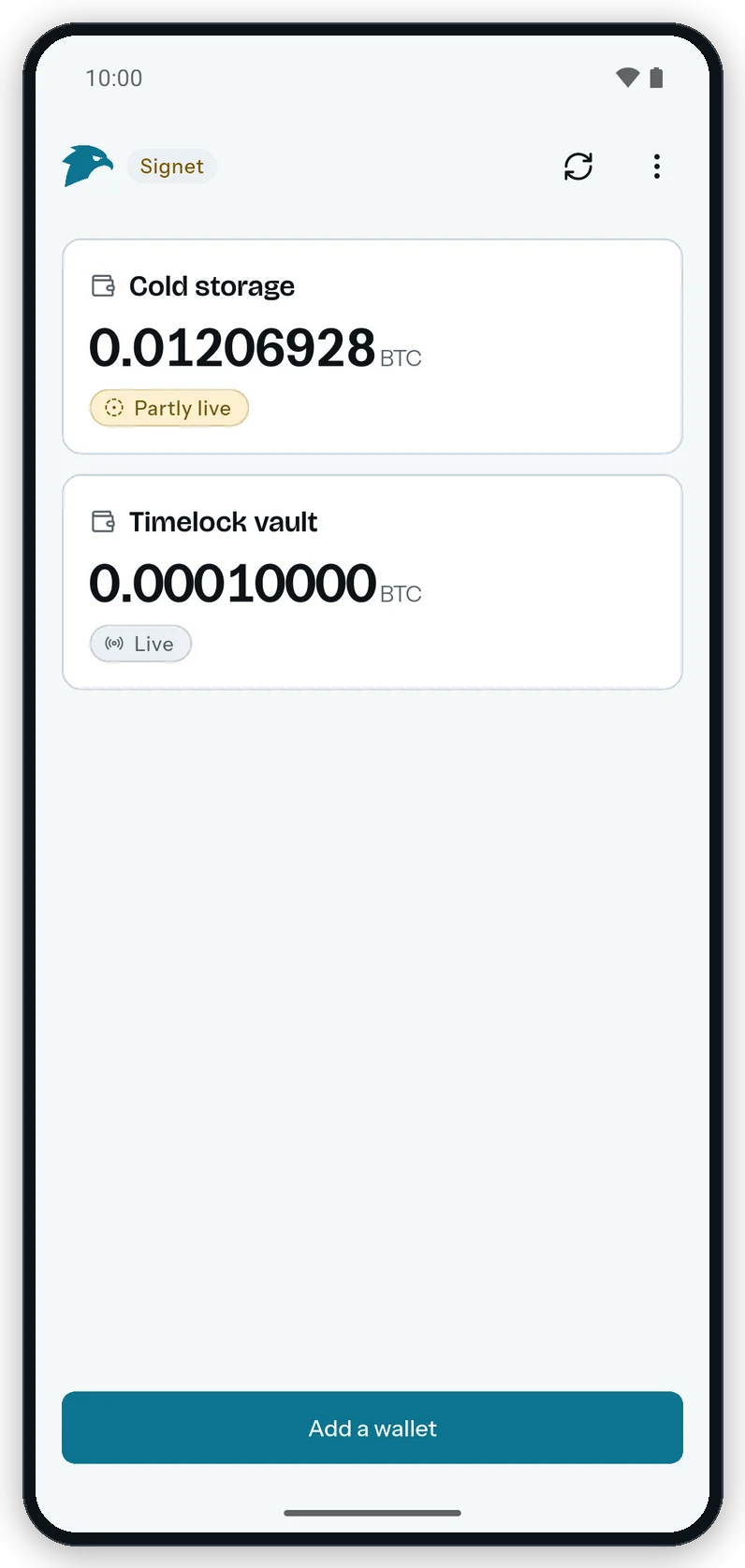
Each card on the home screen says how much of the wallet Live follows.
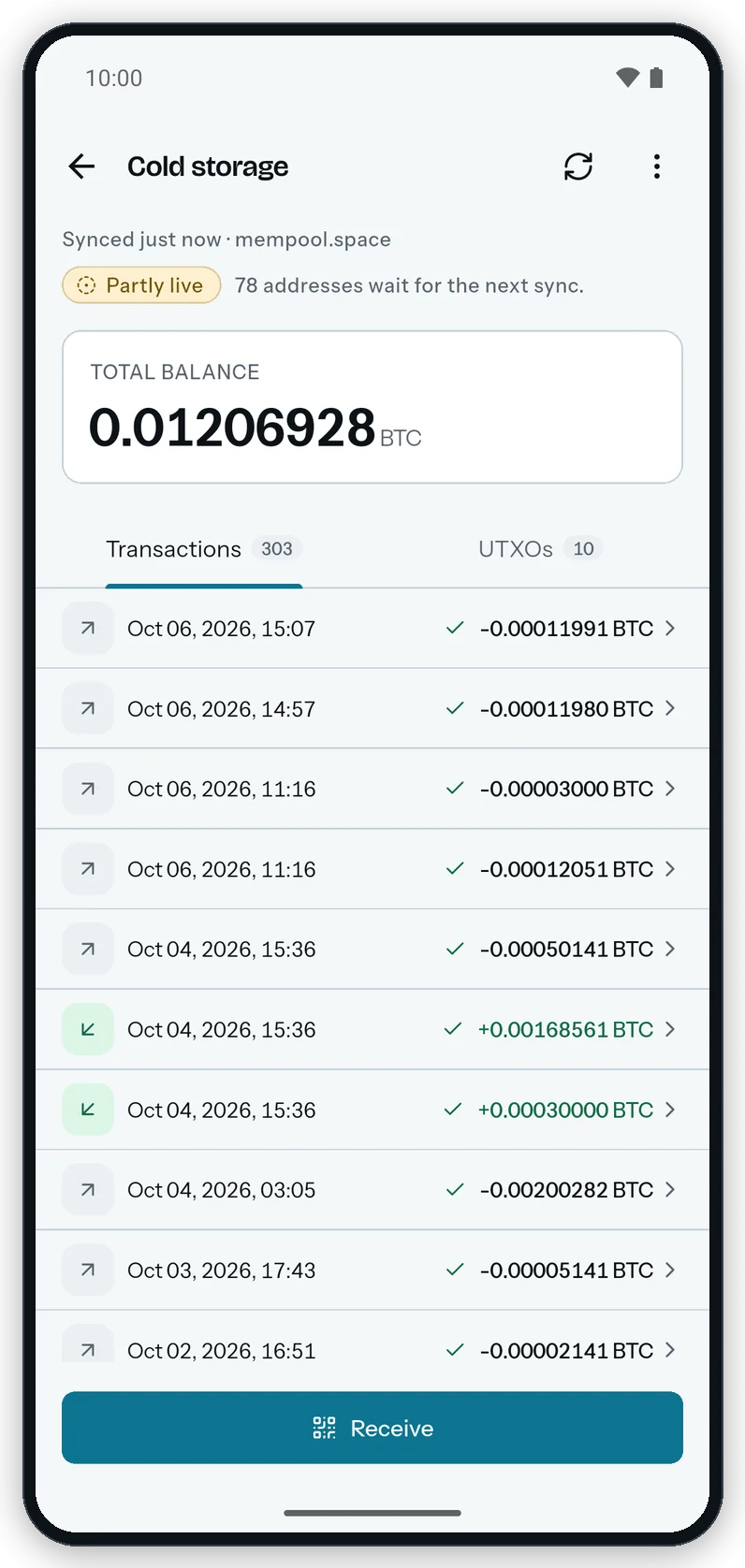
The wallet page adds how many addresses wait for the next sync.
Pin the wallets Live follows first
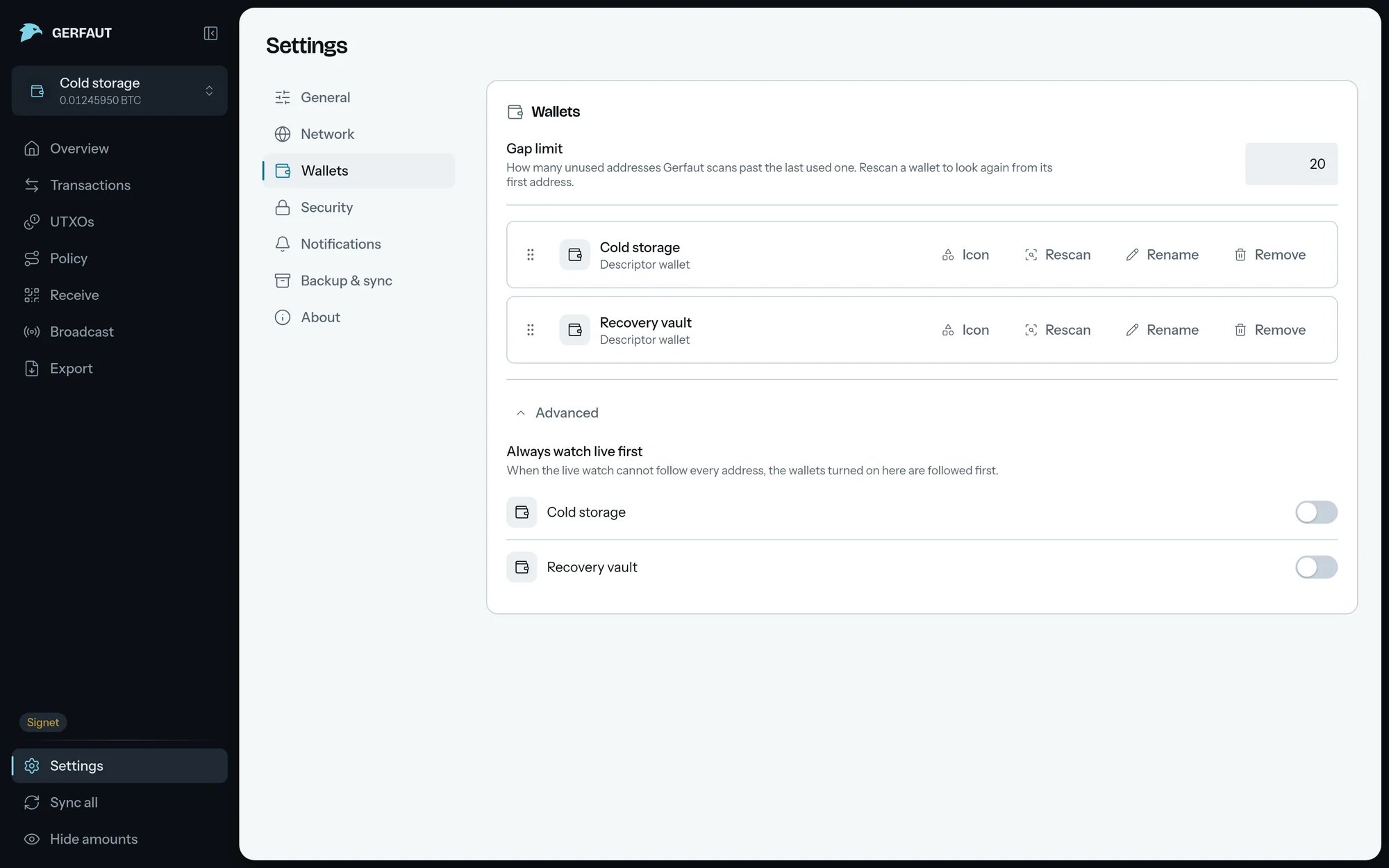
When Live cannot follow every address, it follows the wallets you pin before the others.Open Settings > Wallets
Select the switch of each wallet to pin
Always watch live first. Live picks its addresses again at once. Folded, the button reads Advanced · 1 wallet watched live first.- Android
- Desktop
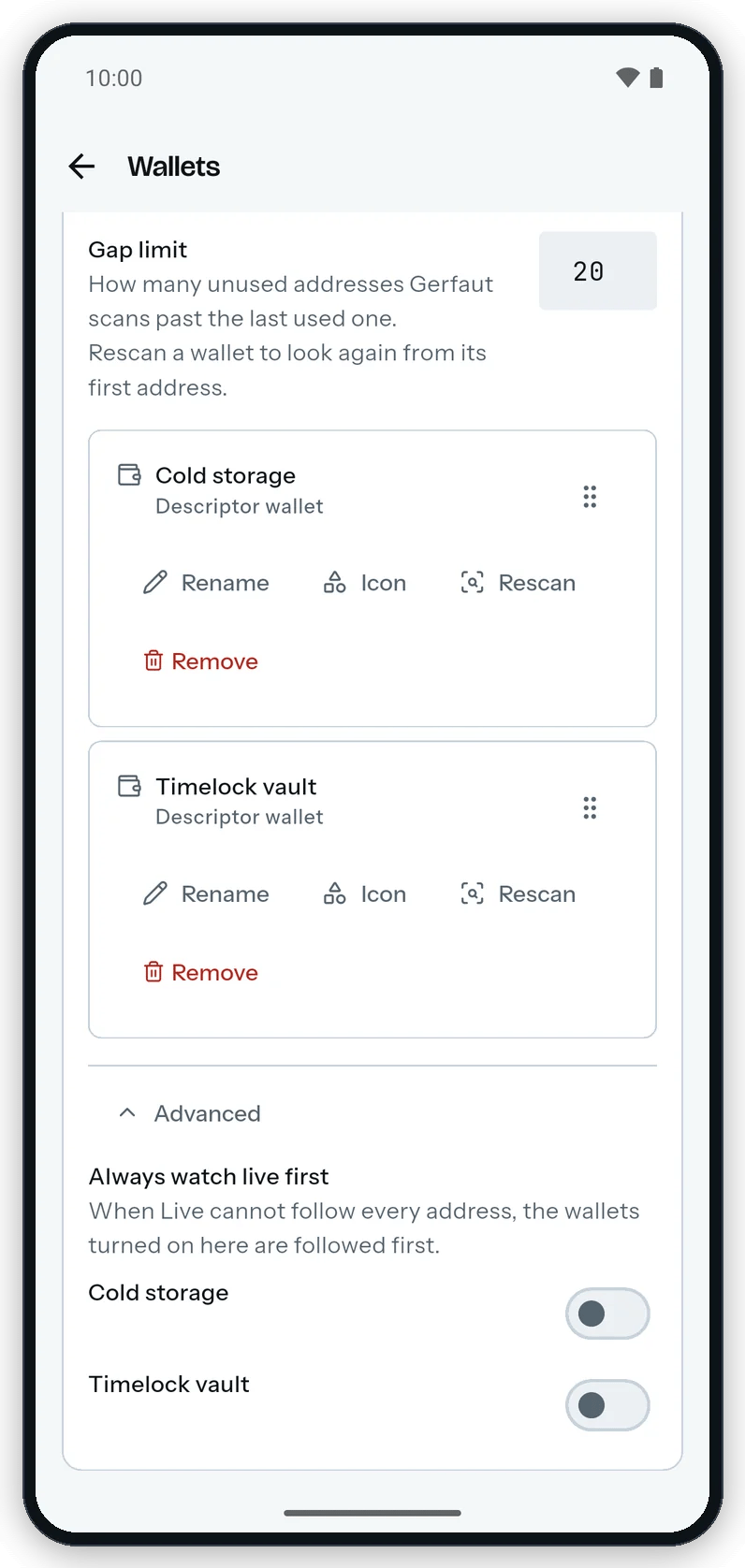
Each switch under Always watch live first puts one wallet ahead of the others.
Keep Live running on Android
Live keeps running when you leave Gerfaut, swipe it away from the recent apps or restart the phone. A check every 15 minutes stays scheduled under it, for whenever Live stops.- Stop: Select Stop on the permanent notification to turn Live off.
Check for transactionsgoes back toEvery 15 min. - Force stop: Force-stopping Gerfaut in the Android settings ends Live until you open Gerfaut again.
- No wallet: When you remove the last wallet of the selected network, Live stops with its permanent notification. Live starts again when you add a wallet.
- Tor: With a
.onionbackend and the built-in Tor, the Tor client stays active for as long as Live runs, which costs battery. - Disguise: Turning on the calculator disguise stops Live. Select
Liveagain once you turn the disguise off. Stopped by Android. Tap to restart.: Select the line to start Live again.Battery: restricted: Select Fix to ask Android for the battery exemption again.
Read a notification
A notification reads the same on Android and desktop. It names the wallet and says what happened, such asReceived 0.01000000 BTC · pending, then Received 0.01000000 BTC · confirmed.
- Long wallet name: A name longer than 64 characters is cut short and ends in
…. - Several transactions: Gerfaut sends at most three notifications per wallet at once, then one that counts the rest, such as
2 more transactions. A payment no longer coming always gets its own. - A burst of notifications: Gerfaut posts at most 20 notifications a minute. The last one reads
More transactions are coming in. Open Gerfaut to see them.Payments no longer coming count apart, so a burst of transactions never silences one. - Hidden amounts: While amounts are hidden, a notification reads like
New transaction · pending, with no amount. - App lock: On Android, the
Show wallet and amountswitch decides whether a notification names the wallet and the amount, locked or not. On desktop, a notification names no wallet and no amount while Gerfaut is locked. - Payment no longer coming: When an incoming payment leaves the mempool before it confirms, and nothing pays the wallet as much in its place, a notification says so, such as
A pending payment of 0.00150000 BTC is no longer coming. For a payment that simply left the mempool, Gerfaut waits until two syncs, at least ten minutes apart, have both missed it. - Fee bump: A payment Gerfaut already announced brings no new notification when its sender bumps the fee.
- Fallback on Android: When Gerfaut cannot write a notification, it still posts one with no wallet and no amount, such as
More transactions are coming in. Open Gerfaut to see them.
Hide the wallet and amount on Android
Open Settings > Notifications
Show wallet and amount sits under New transactions. It is on by default. Gerfaut greys it out while New transactions is off.Select the Show wallet and amount switch
Gerfaut and a line such as New transaction · pending, with no wallet name and no amount.Put a widget on your Android home screen
Hold an empty spot on your home screen
Drag one of the three widgets
- Bitcoin price: The price in your currency, from your price source.
- Balance: The total of your wallets and up to four of them by name.
- Network: The block height of the last sync.
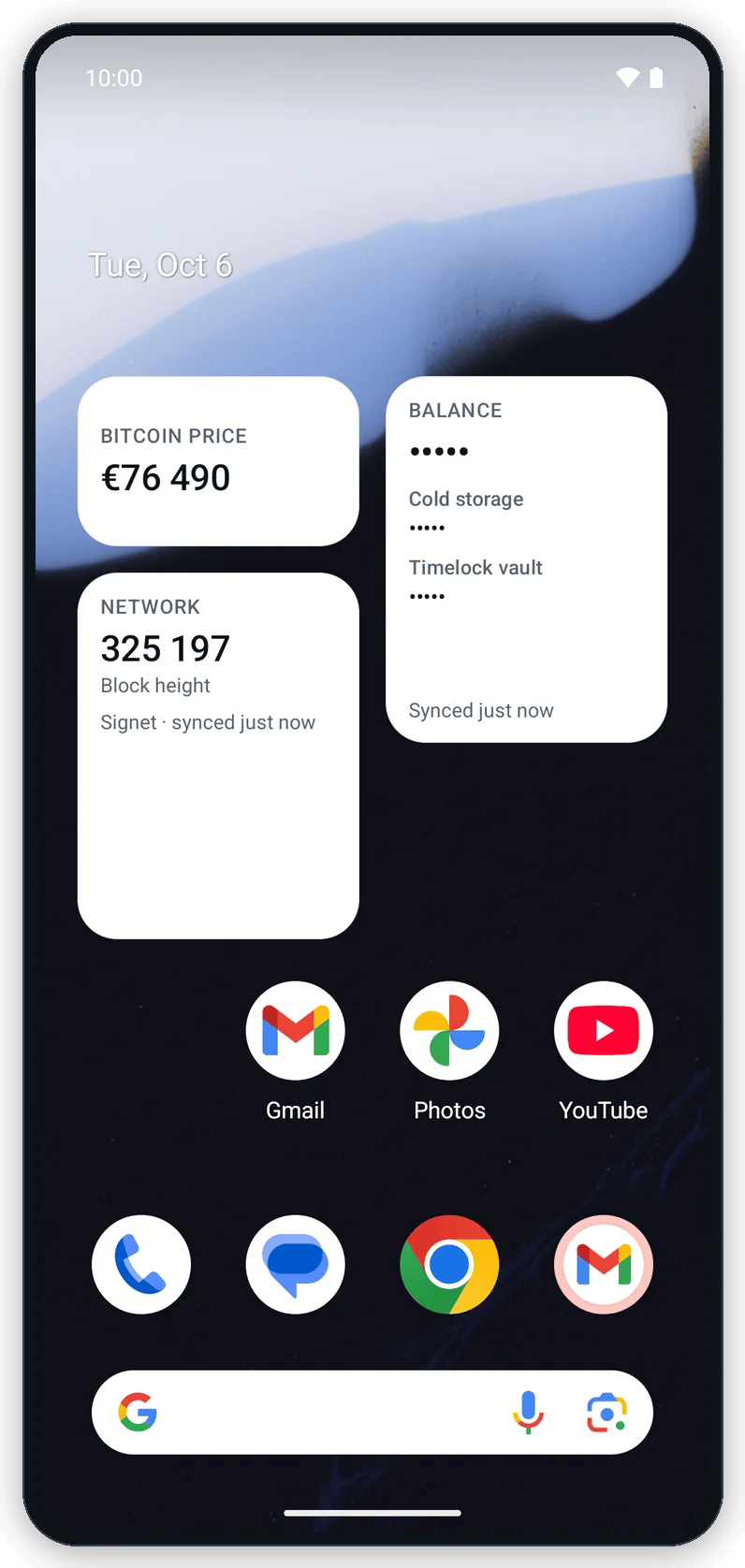
Home-screen widgets show the price, the block height and the wallet balances, masked by default.
Bitcoin price widget says when Gerfaut fetched the price, such as as of 09:41. A price from an earlier day shows its date too, such as as of Oct 03, 09:41, or as of Oct 03 when the widget is too narrow for the time.
With CoinGecko as the price source, the widget also reads Powered by CoinGecko. With a .onion backend, it never starts Tor for the price alone.
The Balance widget shows ••••• until you select the Show balances on widgets switch in the Widgets card of Settings > Notifications, and while you hide amounts in Gerfaut. While an app lock is set, it shows no wallet name and no amount. Gerfaut greys out the switch until you remove the lock.
A widget refreshes while Gerfaut is open, and about every 15 minutes in the background while it sits on your home screen. That background refresh fetches the price only, so balances and block height are those of the last sync. A widget never shows an address or a transaction id.
Turning on the calculator disguise removes the widgets from your home screen. Add them again once you turn the disguise off.